Azure-docs: How to gain access to SQL servers created.
I am following the steps. I am to the point to create a new login in SQL server for CORP\install.
Did I miss a big step somewhere. How am I supposed to get in to SQL to add the login? No sa account and my corp\DomainAdmin does not have a login.
Document Details
⚠ Do not edit this section. It is required for docs.microsoft.com ➟ GitHub issue linking.
- ID: f7e54667-9299-de94-5b2c-4d54959cbf27
- Version Independent ID: 1dca831e-665a-e8c0-1654-0887732f6908
- Content: SQL Server availability groups - Azure virtual machines - Prereqs
- Content Source: articles/virtual-machines/windows/sql/virtual-machines-windows-portal-sql-availability-group-prereq.md
- Service: virtual-machines-sql
- GitHub Login: @MikeRayMSFT
- Microsoft Alias: mikeray
 gbargsley
All 23 comments
@gbargsley Could you please provide us with the link of the article/demo you were following ?
Thanks,
 AdamS-MSFT
on 5 Feb 2019
AdamS-MSFT
on 5 Feb 2019
@gbargsley The sa account was created when you deployed the Azure SQL Database instance. You then can use SQL Server Management Studio client to access the database to add additional users. The sa account can be modified (password reset) via the Azure Portal. To access the database with SSMS, please use this tutorial: Quickstart: Use SQL Server Management Studio to connect and query an Azure SQL database.
 Mike-Ubezzi-MSFT
on 5 Feb 2019
Mike-Ubezzi-MSFT
on 5 Feb 2019
@gbargsley Is this an on-premise SQL Server installation, by chance?
Mike-Ubezzi-MSFT
on 5 Feb 2019
There were no steps to set an sa password during the steps. The below link takes you to the step I am trying to complete.
https://docs.microsoft.com/en-us/azure/virtual-machines/windows/sql/virtual-machines-windows-portal-sql-availability-group-prereq#create-a-sign-in-on-each-sql-server-vm-for-the-installation-account
gbargsley
on 5 Feb 2019
@gbargsley There is no sa account in this instance. Please use the domain account created in previous steps:
Connect to the server through the Remote Desktop Protocol (RDP) by using the
\DomainAdmin account.
The
Mike-Ubezzi-MSFT
on 6 Feb 2019
I am trying to login to SQL with SSMS to add the CORP/Install login. I have no issue with DC’s.
gbargsley
on 6 Feb 2019
@gbargsley Understand that. Being that you are working with domain accounts, there is no SQL Server specific account to use. You will be using the same account you use to access the VMs, that was set-up when configuring the domain controllers...per the instructions.
Mike-Ubezzi-MSFT
on 6 Feb 2019
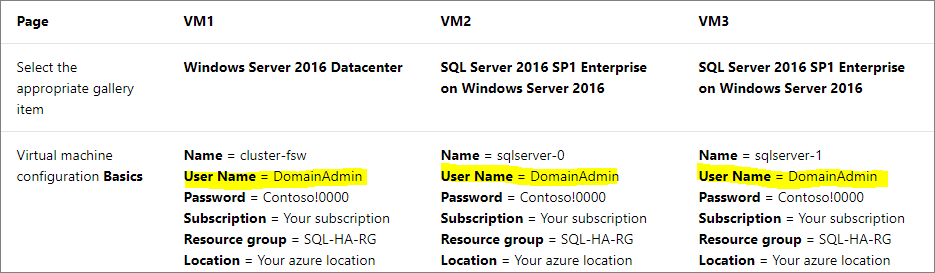
@gbargsley Did you get this resolved or is this still an issue? In this section, you create a DomainAdmin account: Create virtual machines for the domain controllers.
User name | DomainAdmin / Password | Contoso!0000
You then Create and configure the SQL Server VMs using the same domain
User Name = DomainAdmin / Password = Contoso!0000
And finally, you Create a sign-in on each SQL Server VM for the installation account
- Connect to the server through the Remote Desktop Protocol (RDP) by using the
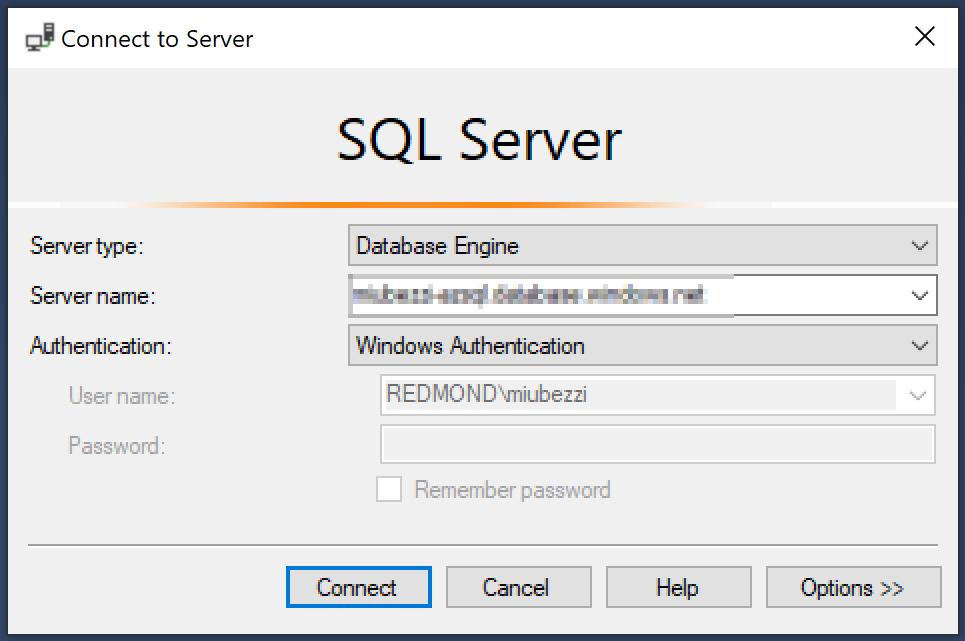
\DomainAdmin account. - Open SQL Server Management Studio and connect to the local instance of SQL Server.
The authentication type should be Windows Authentication and the Username: <MachineName>\DomainAdmin account
If this is not working out then yes, the tutorial needs to be looked at. Please let me know if you were able to move forward. Thank you!
Mike-Ubezzi-MSFT
on 11 Feb 2019
My Azure credits ran out for the month. I will pick this back up. You can close and I will try these steps when possible.
gbargsley
on 12 Feb 2019
@gbargsley Happy to assist when you get back to this. We will now proceed to close this thread. If there are further questions regarding this matter, please comment and we will gladly continue the discussion.
Mike-Ubezzi-MSFT
on 13 Feb 2019
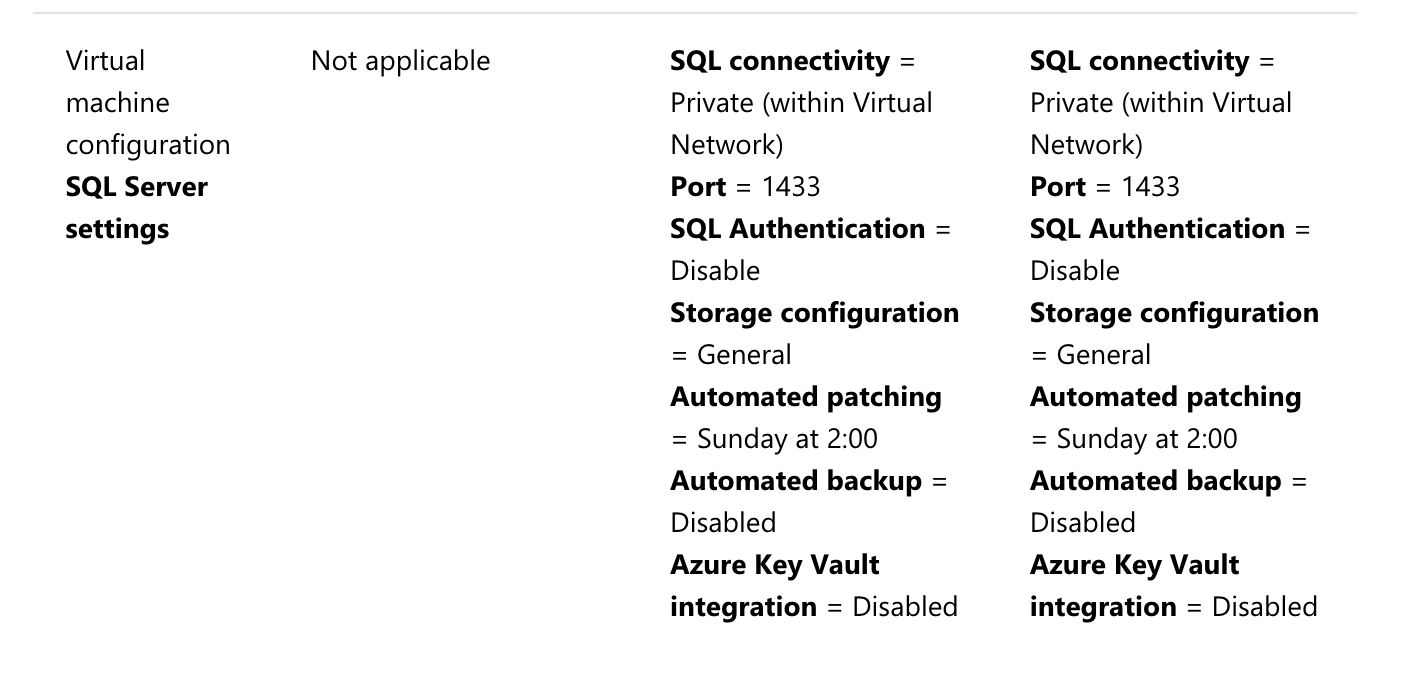
In the above guide at 'Section Create and configure the SQL Server VMs' the following setting I reckon is incorrect - SQL Authentication = Disable
This prevented me logging in. It should be set to Enable to allow access.
 SimonGivan
on 19 Jul 2019
SimonGivan
on 19 Jul 2019
@Mike-Ubezzi-MSFT Please see above comment
SimonGivan
on 19 Jul 2019
I see that. The tutorial is using domain accounts and not SQL Authentication but I see that there is nothing in regard to connecting with SSMS or creating a user account. Let me check with the content author. Thank you for following up with this.
Mike-Ubezzi-MSFT
on 23 Jul 2019
@MikeRayMSFT Is there supposed to be a user identified/created with this tutorial to access the SQL Server instance via SSMS (for instance)? @CarlRabeler for awareness. The VM is set-up to explicitly deny SQL Server authentication (per @SimonGivan latest comment) yet none of the domain logins appear to work?
Mike-Ubezzi-MSFT
on 23 Jul 2019
@VanMSFT @MashaMSFT this customer is having some issues with login authentication to an Azure VM using SSMS. It does not appear that he is trying to use Azure SQL Database (PaaS) but rather a VM (IaaS). Can you review and assist / direct Simon and/or improve the docs?
Thanks,
Carl
 CarlRabeler
on 23 Jul 2019
CarlRabeler
on 23 Jul 2019
I was able to get logged in but I had to set SQL Authentication = Enable, in the guide it states Disabled.
Once I did this I was able to login using the local account on the server and then add the network account as sysadmin.
SimonGivan
on 23 Jul 2019
Hi @SimonGivan, thanks for bringing this to our attention! Let me look into this :) Thanks!
 MashaMSFT
on 24 Jul 2019
MashaMSFT
on 24 Jul 2019
Hi @SimonGivan , thanks again for notifying us of this! I went through the tutorial and was able to confirm that we provide steps to access the machine using windows authentication with the local system account, and not SQL authentication.
In this step here, we advise the customer to log into the machine using the local user account created when the VM was created.

This account is specified here, and has sysadmin rights to connect to SQL Server.
If you log into the VM using the
I hope that helps and please let me know if we can be of further assistance.
Thanks!
Masha from the SQL Docs team
MashaMSFT
on 29 Jul 2019
@MashaMSFT The strange thing is this did not work for me, I could not login to SQL with the local admin account. To enable me to login with local admin I had to change SQL Authentication from Disable to Enable. Only when this was changed was I able to login with the local admin account.
SimonGivan
on 30 Jul 2019
Hi @SimonGivan , just to clarify.. you were logged into the machine sql-server-0 with the account 'sqlserver-0\DomainAdmin' and you were unable to connect to SQL Server using windows authentication? Is that correct?
Thanks!
Masha from the SQL Docs team
MashaMSFT
on 30 Jul 2019
Hi @MashaMSFT Yes that is correct.
SimonGivan
on 1 Aug 2019
Hi @SimonGivan, thanks for the clarification! I'm not really sure how that's the case, as that account should have been given access to the SQL Server when the SQL Server VM was created. Do you still have access to the machine? If so, would you mind zipping up all of your error logs and emailing them to me? My email is masha.[email protected].
Thanks!
MashaMSFT
on 1 Aug 2019
Hi @MashaMSFT Unfortunately I don't. When I was faced with the access issue and identifed the problem I blew away the VMs and recreated them with SQL Authentication Enabled. Then I was able to login with the local account and grant the network account the appropriate settings to enable me to continue with the guide.
SimonGivan
on 2 Aug 2019
Related issues
 JamesDLD
·
3Comments
JamesDLD
·
3Comments
 AronT-TLV
·
3Comments
AronT-TLV
·
3Comments
 jebeld17
·
3Comments
jebeld17
·
3Comments
 DeepPuddles
·
3Comments
DeepPuddles
·
3Comments
 varma31
·
3Comments
varma31
·
3Comments