Azure-docs: Powershell example? ...
Is there a way, when provisioning a VM via PowerShell to set the temporary disk letter to something other than "D"?
Document Details
⚠ Do not edit this section. It is required for docs.microsoft.com ➟ GitHub issue linking.
- ID: ecd7a86b-b95d-05dd-d1f8-6725fb6e439c
- Version Independent ID: 99e9ba63-6ad0-0288-2c32-5c304f5d07d1
- Content: Make the D: drive of a VM a data disk
- Content Source: articles/virtual-machines/windows/change-drive-letter.md
- Service: virtual-machines-windows
- GitHub Login: @cynthn
- Microsoft Alias: cynthn
 bdcoder2
All 7 comments
Thanks for the question! We are investigating and will update you shortly.
 mimckitt
on 8 Nov 2018
mimckitt
on 8 Nov 2018
@bdcoder2 no this is not possible. The user does not have any control over the D drive until the VM has been provisioned. This is automatically taken care of my the Azure Fabric during creation. You could run a script after you created the VM to change the drive letter. But regardless, when deploying the VM you would need to wait until after it is provisioned before changing any driver letters.
I will close this but if you have additional questions let me know and we can always reopen and continue the discussion.
mimckitt
on 8 Nov 2018
Do you happen to have any PowerShell script examples that change the temporary drive letter AFTER the VM has been provisioned?
bdcoder2
on 9 Nov 2018
@bdcoder2 I don't off the top of my head... But let me look around and if not I am sure I can create one for you. I will get back to you on this.
mimckitt
on 9 Nov 2018
@bdcoder2 I did some digging around and it seems this was not as simple as I would have though.
I finally found this:
After taking the steps from this doc I was able to complete the change via PowerShell
Here was my script:
gwmi win32_pagefilesetting
$pf=gwmi win32_pagefilesetting
$pf.Delete()
Restart-Computer –Force

Get-Partition -DriveLetter "D" | Set-Partition -NewDriveLetter "T"
$TempDriveLetter = "T"
$TempDriveLetter = $TempDriveLetter + ":"
$drive = Get-WmiObject -Class win32_volume -Filter “DriveLetter = '$TempDriveLetter'”
#re-enable page file on new Drive
$drive = Get-WmiObject -Class win32_volume -Filter “DriveLetter = '$TempDriveLetter'”
Set-WMIInstance -Class Win32_PageFileSetting -Arguments @{ Name = "$TempDriveLetter\pagefile.sys"; MaximumSize = 0; }
Restart-Computer -Force
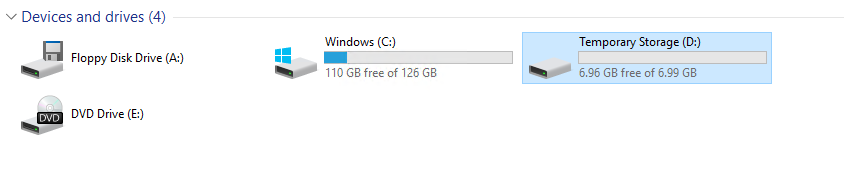
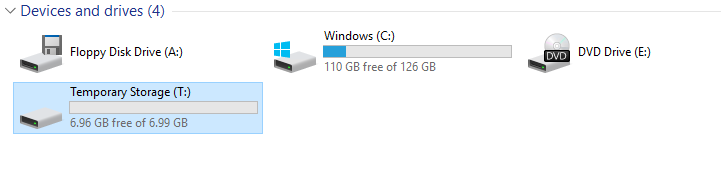
You could also push this script by
- Logging into the VM after provisioning and run the command
- Push the commands using Azure Custom Script Extension
- Push the commands using Azure Desired State Configuration
However if you did decide to use Custom Script Extension then you would have to push two different custom scripts as they both require you to reboot the VM after changes have been made. So DSC would be the ideal thing to use.
Due to every new VM you create having the temp drive assigned as D I would suggest you work using the default drive letters to make your life easier. However if you want to change it then you also have these options as well as the GUI option. GUI is the simplest way to do it and that is the way I would suggest. That way everything is taken care of for you with a click of a button. The settings will persist so once you do it on the VM the changes will remain.
Let me know if you have additional questions.
mimckitt
on 9 Nov 2018
Thanks @MicahMcKittrick-MSFT -- great help -- too bad D was selected for the temp drive by default -- when trying to lift and shift a system to Azure, I would rather rename the temp drive than change a few hundred scripts that reference D as a data drive! "Z" or "T" would have been a much better choice for temporary storage and would (probably) cause far fewer "collisions" with existing systems that want to port over to Azure.
bdcoder2
on 10 Nov 2018
We have a DSC module to do this: https://www.powershellgallery.com/packages?q=cMoveAzureTempDrive
 ChristopherGLewis
on 28 Apr 2020
ChristopherGLewis
on 28 Apr 2020
Related issues
 jebeld17
·
3Comments
jebeld17
·
3Comments
 jharbieh
·
3Comments
jharbieh
·
3Comments
 JamesDLD
·
3Comments
JamesDLD
·
3Comments
 DeepPuddles
·
3Comments
DeepPuddles
·
3Comments
 Ponant
·
3Comments
Ponant
·
3Comments
Most helpful comment
Thanks @MicahMcKittrick-MSFT -- great help -- too bad D was selected for the temp drive by default -- when trying to lift and shift a system to Azure, I would rather rename the temp drive than change a few hundred scripts that reference D as a data drive! "Z" or "T" would have been a much better choice for temporary storage and would (probably) cause far fewer "collisions" with existing systems that want to port over to Azure.