Azure-docs: Storage Spaces Disk Guidance on adding data disks to a pool
For the disk guidance when using storage spaces, is says:
Set column count = number of physical disks. Use PowerShell when configuring more than 8 disks
If I start with 2 disks, I create my pool with a column count of 2. If I then add a disk (for a total of 3), the best practice appears to say that I need to change the column count from 2 to 3.
However, as far as I can tell, there's no way to change the column count for a storage pool using Storage Spaces once the pool was created.
What is the recommended action when the physical disk count changes? Would a new 3 disk pool need to be created, and then the DB migrated? That might require unwanted downtime.
Document Details
⚠ Do not edit this section. It is required for docs.microsoft.com ➟ GitHub issue linking.
- ID: 139dc620-240c-779f-1eed-c12accfe2ef6
- Version Independent ID: a6deda7b-8361-2e2c-808a-48c047bae7a1
- Content: Performance best practices for SQL Server in Azure
- Content Source: articles/virtual-machines/windows/sql/virtual-machines-windows-sql-performance.md
- Service: virtual-machines-sql
- GitHub Login: @rothja
- Microsoft Alias: jroth
 aydeisen
All 15 comments
@aydeisen Thanks for the question! We are investigating and will update you shortly.
 mimckitt
on 8 May 2018
mimckitt
on 8 May 2018
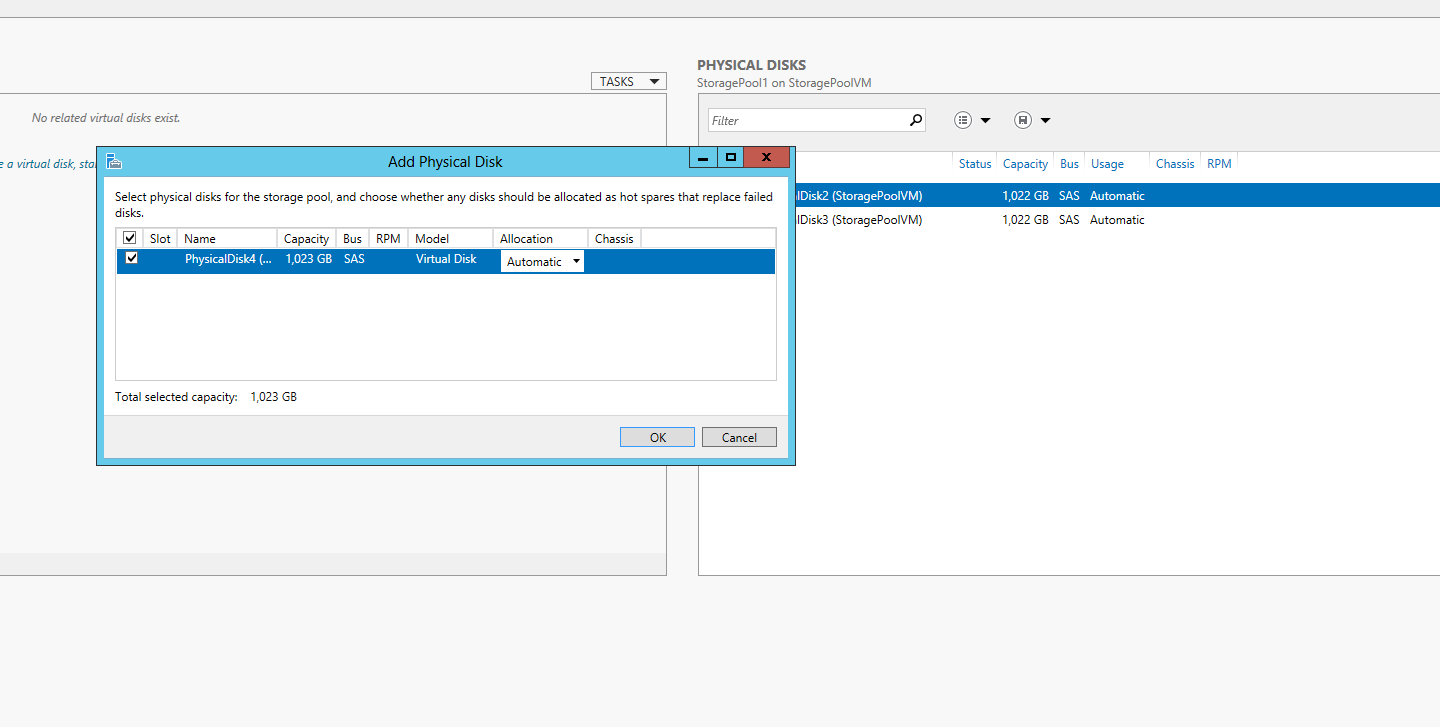
If you want to add a new disk to your storage pool you do not need to recreate it or have any cause of downtime.
You simply can go into Server manager -> File and Storage Services -> Storage Pools -> Select your Storage Pool -> Right Click -> Add Data disk

mimckitt
on 9 May 2018
@MicahMcKittrick-MSFT: I understand that part. But in doing so, the number of disks is no longer equal to the number of columns, which is recorded in this document as a best practice. Is it a non-issue in this case?
aydeisen
on 9 May 2018
@aydeisen got it.
@rothja can you chime in on this? I don't believe it matters if you go back to update the column count but I am not 100%
mimckitt
on 9 May 2018
@aydeisen @MicahMcKittrick-MSFT Thanks for the question. I see your dilemma because you're saying that you would have to basically start over to increase the column count to 3. That is a big price to pay that you wouldn't want to do unless the performance difference was significant. Let me check with some internal contacts to see if this is an issue when making disk changes. It might just be a best practice for a small gain on the front-end. I'll get back to you soon.
 rothja
on 11 May 2018
rothja
on 11 May 2018
@rothja any luck with this?
mimckitt
on 15 May 2018
@MicahMcKittrick-MSFT Thanks, not yet. I've sent another email just now to ask again.
rothja
on 15 May 2018
@rothja I will assign this to you while you are waiting to hear back
mimckitt
on 21 May 2018
@MicahMcKittrick-MSFT Thank you!
@aydeisen Sorry for the long delay. I'm trying to track down the right experts to understand the proper action here. I know you've probably made a decision by now with it being so long. Did you decide to live with the current column count and assume the performance impact would be minimal? Thanks!
rothja
on 23 May 2018
@rothja: no problem. The server in question is a non-production server, so we haven't done anything with it yet. Retaining the column count is certainly the least impactful of the options, but right now, that also means it's not following the best practice document. I am wondering what the preference is, and whether modifying the column count is worth the downtime.
aydeisen
on 23 May 2018
It won't have optimal performance if you leave column count at 2, but as you say there is no way to change it after the fact when you add more disks. You should also add disks in multiples of the column count. Take a look at this article:
https://social.technet.microsoft.com/wiki/contents/articles/15200.storage-spaces-designing-for-performance.aspx
Take note of this point:
"If you choose a high column count storage space and you intend to expand the capacity of the storage space in the future, you should add at least as many disks as the storage space has columns (in case of a simple or parity space), or columns times number of data copies (in the case of a mirrored space). For instance, when deploying a two-way mirrored space with four columns, you should have eight disks with available capacity (four columns times two data copies), and add disks in groups of eight when expanding the storage pool."
And this one:
"Another factor that ties in directly with the column count of the space is the amount of outstanding I/Os or data that is to be read from or written to the storage space. A large number of columns benefits applications that generate enough load to saturated multiple disks, but introduce unnecessary limitation on capacity expansion for less demanding applications."
 TolliLF
on 26 May 2018
TolliLF
on 26 May 2018
@TolliLF: So, since we're discussing the best practice document, what is the best practice? Add disks to the existing pool or create a new pool with the new column count and migrate the databases?
aydeisen
on 27 May 2018
@aydeisen I've done some additional research on your question since we last spoke (apologies again for how long this has taken to get a firm answer). If you want the maximum performance available to you with the additional disks, you'll have to create a new pool with the new column count and migrate your databases. However, if you just need additional storage in your pool for SQL data, you can extend the disk. Per https://docs.microsoft.com/en-us/azure/virtual-machines/windows/sql/virtual-machines-windows-sql-server-storage-configuration#existing-vms, extending the disk requires you to add the same number of disks as your current column count. You'll still have the performance characteristics of your original pool but with the added space for SQL data.
So if it's a question of maximizing performance, migrating to a new configured pool would be the answer. But if the current performance is meeting your requirements, then it is easier to extend your disk if you require more storage.
I'm going to recommend closing this issue now as answered, but if you have any other questions or if this is unclear in any way, please let me know. Thank you for your patience.
please-close
rothja
on 13 Jun 2018
Thanks Jason, this clarified many items, wanted to implement StorageSpace in Azure IAAS for SQL DBs. I was struggling to find answers regarding number of columns in case if i add additional disks.
Also if you have more than 8 disks columns are always set to 8 in case if you configure StoragePool using GUI, hence started using PS command line.
 vinholla
on 28 Sep 2018
vinholla
on 28 Sep 2018
Unfortunately, as already stated, changing column count of Virtual Disk is not supported. It can be set only during creation of Virtual Disk. You can do this as a workaround:
- add new drive(s) to existing storage pool
- create new virtual disk over all disks in the pool, having increased column count
- use log shipping to move databases to this new drive without downtime
- switch by last log backup, restore, DB rename
- Drop old database, drop old virtual disk
It is quite an action. But is only a small downtime for last log backup-restore-rename. Seconds if scripted. If you can afford downtime, you can copy offline (db offline, copy, alter file locations, db online).
It would be SO MUCH simpler if Microsoft would support changing column count.
 SqlMasterVedran
on 19 Sep 2019
SqlMasterVedran
on 19 Sep 2019
Related issues
 JeffLoo-ong
·
3Comments
JeffLoo-ong
·
3Comments
 monteledwards
·
3Comments
monteledwards
·
3Comments
 jamesgallagher-ie
·
3Comments
jamesgallagher-ie
·
3Comments
 DeepPuddles
·
3Comments
DeepPuddles
·
3Comments
 jharbieh
·
3Comments
jharbieh
·
3Comments