Atom: Atom not appearing on Start Menu (or anywhere) on Windows 10 after first install.
Prerequisites
- [X ] Put an X between the brackets on this line if you have done all of the following:
- Reproduced the problem in Safe Mode: http://flight-manual.atom.io/hacking-atom/sections/debugging/#using-safe-mode
- Followed all applicable steps in the debugging guide: http://flight-manual.atom.io/hacking-atom/sections/debugging/
- Checked the FAQs on the message board for common solutions: https://discuss.atom.io/c/faq
- Checked that your issue isn't already filed: https://github.com/issues?utf8=✓&q=is%3Aissue+user%3Aatom
- Checked that there is not already an Atom package that provides the described functionality: https://atom.io/packages
Description
Atom not appearing on Start Menu on Windows 10 after first install. Atom.exe does not exist anywhere on my system. The program, however, can be uninstalled through the control panel.
Steps to Reproduce
- Download and install Atom
- Acknowledge and close the welcome window
- Go to start menu and wonder why Atom is not there
- Go to C:\users\me\ .atom\ and wonder why atom.exe is not there
- Go to C:\Program Files (x86)\ and wonder why atom.exe is not there
- Go to Control Panel >> uninstall a program, and wonder why atom.exe is there
- Restart computer
- Repeat steps 3 through 7
Expected behavior: Atom in start menu.
Actual behavior: Atom not in start menu.
Reproduces how often: 100%
Versions
atom does not work on command line. Latest version of Atom installed on 15 March 2017.
Additional Information
I'm using a 2 month old laptop with minimal bloatware. The machine seems to be in pretty good shape.
 mjpierce7590
All 109 comments
I appreciate any help here. Thank you.
PS I really want to move over from Sublime Text 👍
mjpierce7590
on 17 Mar 2017
Download and install Atom
Can you elaborate on this step? In other words, can you walk me through what website you went to and what buttons you clicked to download and install Atom?
 50Wliu
on 17 Mar 2017
50Wliu
on 17 Mar 2017
I went here: https://atom.io/
And clicked the "Download Windows 64-bit Installer" button.
(my computer is in fact 64-bit)
mjpierce7590
on 17 Mar 2017
Awesome, thanks. Does the %LOCALAPPDATA%\Atom x64 folder exist, and if so, does app-1.15.0\atom.exe exist?
50Wliu
on 17 Mar 2017
Same issue here - loaded on windows 10 64 bit from Atom page . Now can't find a way or any sign of program. I reloaded it and still no sign of a way to start it or if it exists on computer. Did a search for atom.exe and came up with nothing.
To clarify - after I ran setup program Atom was open and I was able to do updates , install platformio, etc. But after I close it , there is no way to find or open it again.
 larduino
on 18 Mar 2017
larduino
on 18 Mar 2017
@larduino It would help if you could answer my questions above.
50Wliu
on 18 Mar 2017
Okay - I found the atom.exe file here
C:\Users\my user name \AppData\Local\atomapp-1.15.0\atom.exe
and I made a shortcut so I can start it up now.
Thanks
larduino
on 19 Mar 2017
/cc @damieng looks like another case of shortcuts not being added.
50Wliu
on 19 Mar 2017
Thanks to @larduino , that's exactly where my atom.exe is as well.
mjpierce7590
on 19 Mar 2017
That is the expected location for Atom but it is supposed to have added a shortcut to your desktop and to your start menu.
Does your username have any unusual characters or spaces in it?
 damieng
on 19 Mar 2017
damieng
on 19 Mar 2017
nothing unusual about my username
mjpierce7590
on 19 Mar 2017
Hi,
I got the same problem. It could be related to my username (Clément) which needs UTF-8 recognition.
Hope this helps.
 eTorAken
on 21 Mar 2017
eTorAken
on 21 Mar 2017
That could be part of it - we shell out to Squirrel's update.exe - it's possible some utf-8 encoding is getting mangled through the process.
damieng
on 21 Mar 2017
Personally have had no problems. Just reinstalled it today and it's fine for me. You could always search the file directory for the launcher, right click, and select "create shortcut". It typically ask to go on the desktop but if not just grab the copy of the shortcut and drag+drop it to the desktop. @larduino seems to have done this so if you haven't yourself you can do so. Pretty simple but if you're still having problems let me know.
 ghost
on 25 Mar 2017
ghost
on 25 Mar 2017
I did just have the same issue with a standard, one-word username, though at least I could get past it with the above help (though I had to figure out that the version is now 1.17.0, not 1.15.0).
 TheRenaissance
on 17 May 2017
TheRenaissance
on 17 May 2017
I'm having the same issue - Atom gets installed into %localappdata%\atom but no shortcuts are created anywhere. After uninstalling and reinstalling, a app-1.18.0-beta2 folder gets created. My username is 6 alphanumeric characters, so that shouldn't be an issue. While it's confusing to know which atom.exe needs to run and what the target should be for a shortcut to the application (i.e. should it include any switches, etc), Atom starts after running %localappdata%\atom\atom.exe. It's just an annoyance to manually create shortcuts and I think it indicates the installer is still problematic since this doesn't happen with other apps. In fact, this appears to be similar to #12124 that was reported almost a year ago on Win7.
 corydeppen
on 27 May 2017
corydeppen
on 27 May 2017
I am having the same problem on Windows 7. My username is all alphanumeric.
 ssimo3lsuhsc
on 8 Jun 2017
ssimo3lsuhsc
on 8 Jun 2017
I have this problem too. Atom was installed to %localappdata%\atom but nothing in start menu, program folder, etc.
Windows 7 Professional SP1
Can confirm @50Wliu @damieng I re-installed with my anti-virus turned off and still had this problem. Username contains only normal letters.
Program is located at C:\Users\<USERNAME>\AppData\Local\atom

 kb1lqc
on 3 Jul 2017
kb1lqc
on 3 Jul 2017
Somewhat of a workaround here is to add %LOCALAPPDATA%\Atom to the PATH environmental variable and then you can at least search for atom.exe in the start menu. Then I just pinned it to the start menu.
It would be awesome if this was cleaned up for a better user experience on Windows. Hopefully this helps!
kb1lqc
on 3 Jul 2017
I'm also facing the same problem. I've uninstalled it and reinstalled a couples of times now still can't find it anywhere on my computer accept for the atom.exe which is located in my user folder.
 AllanKoaikJunior
on 15 Jul 2017
AllanKoaikJunior
on 15 Jul 2017
I also have this issue. I was able to find atom.exe in C:\Users\my user name \AppData\Local\atom\app-[version]atom.exe
FYI
 piyawill
on 17 Jul 2017
piyawill
on 17 Jul 2017
Just so you know. I also have this issue. I was able to find atom.exe in C:\Users\my user name \AppData\Local\atom\app-[version]atom.exe
 Downes
on 31 Jul 2017
Downes
on 31 Jul 2017
There is definitely a bug here but without Squirrel adding more detailed logging we will not be able to get the bottom of it.
There is no need for any more people to simply report they are also having this issue.
damieng
on 31 Jul 2017
@mjpierce7590 It is not located in the Program Files (x86) because you installed the x64 version, it should be in Program Files (without x86)
 carkod
on 12 Aug 2017
carkod
on 12 Aug 2017
Found a solution to this problem!
Step 1: Go to "C:\Users\
Step 2: Copy the Atom shortcut in there
Step 3: Paste it in "C:\Users\
Now Atom should be appearing in the start menu.
This worked for me using the x64 version and Windows 10.
 hoelzlmanuel
on 20 Aug 2017
hoelzlmanuel
on 20 Aug 2017
For me the step 1 was different, because I found the file in another place:
Step 1: Go to "C:\Users\USERNAME\AppData\Local\atom"
Create a shortcut of atom.exe, that you find in that folder, and cut it.
Step 2: Go to "C:\Users\USERNAME\AppData\Roaming\Microsoft\Windows\Start Menu\Programs"
Paste the shortcut in here. Now Atom will appear in the Start Menu.
I understand that it is a bug, so writing how we solved is a temporary solution, they have to solve it via code.
 SamuXzX
on 20 Aug 2017
SamuXzX
on 20 Aug 2017
A different problem,very similar to this one.
I installed atom,and the welcome page instantly opened.
I wrote programs for abt 2 hrs,and then I shut down my pc(i saved my files on atom).
After another startup,it disappeared,it shows atom in Change or Remove programs list,but no .exe file in APPDATA.Just an update file.,i clicked on it but nothing happens.
After reinstalling ,it's the same,
Opens first time and then disappears
 Sant268
on 24 Aug 2017
Sant268
on 24 Aug 2017
Same issue here. I have installed atom but I could not find it. I can't execute from cmd also.
 FranOz
on 27 Aug 2017
FranOz
on 27 Aug 2017
Im having same issues with not having any shortcuts to Atom Editor after Windows 10 x64 installer from the atom.io site. Version I have installed is 1.19.3 no trace of atom.exe in AppData folder. I was able to find its install files under C:\ProgramData vs installed in the Program files
 tazboyz16
on 28 Aug 2017
tazboyz16
on 28 Aug 2017
what if I move this to a new location.
 ntnbst
on 28 Aug 2017
ntnbst
on 28 Aug 2017
I had the same issue, look for the exe file everywhere without luck. I tried to uninstall, but it was not showing in the control panel either. I use Revo Uninstaller most of the time, and when I tried, there it was, so from Revo I right clicked and looked for the install location and viola, there it was! Followed the path: C:\Users\USERNAME\AppData\Local\atom. From there, I made a shortcut in my desktop. Hope this helps!
 Glowmex
on 11 Sep 2017
Glowmex
on 11 Sep 2017
I had the same problem and windows search didn't find atom.exe from any directory. I found kind of workaround:
When I installed atom again and it opened I attached it to the taskbar. Now the icon stays on the taskbar and I am able to launch atom. Not good solution but works. Hope somebody else saves few hours of time while trying to figure this out.
 Hyvjan
on 14 Sep 2017
Hyvjan
on 14 Sep 2017
I had this same issue today, the info in replies above worked. I think the reason that you can't find the .exe file in a search is because the folder is hidden (at least it was on my computer). Once I made the folder "C:\Users\USERNAME\AppData" un-hidden, I could find the file in a search.
 jkeithowens
on 18 Sep 2017
jkeithowens
on 18 Sep 2017
I had the same issue, previous replies worked but now Atom doesn't load, it tries to open but it doesn't and it doesn't show any error message neither.
I reinstalled and now I have the shorcut but Atom still doesn't open. (SO Windows 10)
 AngiePeraza
on 25 Sep 2017
AngiePeraza
on 25 Sep 2017
I have resolved by doing a research in all my :C partition.
Found it in here: "C:\Users\ * \AppData\Local\atom"
Shortcut on desktop and voilà!
Hope it helps!
 AlessiaBaka
on 27 Sep 2017
AlessiaBaka
on 27 Sep 2017
i can see atom any where in my computer, in this place C:\Users\ * \AppData\Local\atom i only see an update.exe
 Baronsindo
on 30 Sep 2017
Baronsindo
on 30 Sep 2017
happened to me with latest installer, got the shortcut, but not found on the CMD prompt line. I ended up adding %LOCALAPPDATA%/atom/bin to my PATH
 wjgeorge
on 12 Oct 2017
wjgeorge
on 12 Oct 2017
@wjgeorge thanks for the path info. I did that too. I have to point out something, though. I am using atom 1.18.0 64-bit on a Windows 10 machine. The LOCALAPPDATA/atom does not contain a /bin folder. I just used the %LOCALAPPDATA%\atom, and it works for me. Also not the "\", as Windows does not allow the "/" as path separator.
 NaijaProgrammer
on 13 Oct 2017
NaijaProgrammer
on 13 Oct 2017
These are all workarounds and not an actual solution to the problem. What exactly is causing the directory and shortcuts to not be created? (Also the splash screen when installing is very small, but that's unrelated methinks)
My username is also quite ordinary with no strange characters.
 murdakah
on 14 Oct 2017
murdakah
on 14 Oct 2017
If we knew what caused it or how to reproduce it we could fix it. Unfortunately nobody seems to have come up with repro steps that work on other people's systems.
It could be permissions, folder length, disk space, unicode characters, group policies, anti-virus...
damieng
on 14 Oct 2017
@damieng
Actually, I've installed it on 3 different windows 10 machines, all 64bit, all acting the same way. Atom installs, but no start menu shortcut. To reproduce you simply need to install atom.
It's also strange that it doesn't install to Program Files, but I suspect that was a conscious decision.
murdakah
on 14 Oct 2017
@murdakah Unfortunately the repro is not that simple or this thread would have hundreds of users. My own dev platform is also Windows 10 64-bit so I would have experienced it too.
It's interesting however that it happens on all three of your systems. Can you provide more information on what is common between them? Some thoughts;
- username on all
- connected to a corporate domain
- running additional security software
etc.
damieng
on 14 Oct 2017
Fair enough.
2 of the systems are Intel based, other one is an AMD Ryzen, so that rules out processor dependence, if that was even a thing.
- All are in fact running Malwarebytes and Avast.
- Usernames are all standard characters, all 3 different usernames through, so I doubt it is that.
- They are not connected to any special domains.
murdakah
on 14 Oct 2017
Could you try temporarily disabling avast on one while you reinstall Atom on it (then re-enable after) and see if you get the icon this time.
damieng
on 14 Oct 2017
No difference. Neither disabling Malwarebytes nor Avast and both at the same time had any effect. Atom simply installed and launched with no start menu directory created.
murdakah
on 14 Oct 2017
I also have the same issue. No issue with my user name. Windows 10 32-bit. It got installed here: %localappdata%\atom. I pinned it to the taskbar from there.
 miajohannes
on 30 Nov 2017
miajohannes
on 30 Nov 2017
Same case here before. But I followed the instructions above. I found the Atom.exe on C:\Users\USERNAME\AppData\Local\atom
 KBPsystem777
on 7 Jan 2018
KBPsystem777
on 7 Jan 2018
I am having the same issues, installed Atom a couple of times without it appearing in the start menu.
After the second install, I did find a shortcut on the desktop (it may have been there the first time without me noticing it). It was a generic windows icon, but I was able to right click it and change it to the Atom icon.
 mrcycling
on 14 Jan 2018
mrcycling
on 14 Jan 2018
And......
I'm having the same problems as above on the win64 installer but as above ive no way of opening it. I cant find the exe files. I know theyre hidden but dunno how to unhide them which is simply yet another google search i need to do.
I want this programme so i can learn programming, just didn't know i needed to be an expert before getting it to even work.
I understand this is open source (which I'm all for) but when writing your instructions for things like the installation you guys need to recognise there are people like me who don't know python or how every bloody nut and bolt of every programme works.
This entire process has been nothing but frustration because the info available to me is above my understanding for both atom and platformIO.
Rant over... the short time i had the editor open i actually liked atom and found it straightforward i just wish you guys n gals had put as much effort into the installation side of things as they need serious work unless youre an expert in python/java
 jimmybigbaws
on 4 Mar 2018
jimmybigbaws
on 4 Mar 2018
@jimmybigbaws There should be an icon in the start menu. It doesn't appear for some people and we've never been able to find out why as we can't reproduce it here.
You should be able to find the atom.exe by hand by using Windows Explorer and navigating to C:\Users\<your user name>\AppData\Local\Atom x64 Right-drag this to your desktop and choose 'Create Shortcut' to give it an icon.
damieng
on 4 Mar 2018
Same problem here on Windows 10 64bit creators update.
 GordanBlake
on 20 Mar 2018
GordanBlake
on 20 Mar 2018
Likewise, I have managed to find the folder in AppData/Roaming but the .exe file is not there...
 CharlieSWLondon
on 20 Mar 2018
CharlieSWLondon
on 20 Mar 2018
@CharlieSWLondon It's in the local folder, not the Roaming one. See my response two comments above yours.
damieng
on 20 Mar 2018
I could not access the AppData file without using Roaming though? It did not appear on my directory?
CharlieSWLondon
on 20 Mar 2018
I managed to find the local folder in the end (not easily) however every atom file I clicked did not work and then disappeared. One error message was thrown up though - "The code execution cannot proceed because ffmpeg.dll was not found. Reinstalling the program may fix this problem
CharlieSWLondon
on 20 Mar 2018
I have managed to sort it (I think) by following the instructions below to make the AppData/local/atom folder 'visible'. I could then pin atom.exe to my taskbar before it disappeared.
CharlieSWLondon
on 20 Mar 2018
I found the folder atom in %localappdata% but i could not find atom.exe in it . there are one folder named packages and a application file named update.exe. I could not find , I have reinstalled it and again after installing found the same problem.
 Tarun22Sahu
on 4 Apr 2018
Tarun22Sahu
on 4 Apr 2018
Just installed on my Win10-x64-v1607 system and had the same shortcuts issue. Found the executable in %localappdata%\atom and manually created my desired shortcuts. I certainly was a bit confused after I closed it for the first time and couldn't re-open it before I found this thread.
 DSAutomations
on 5 Apr 2018
DSAutomations
on 5 Apr 2018
Oh I got a better solution. when installed first time and open first time pin it into the task-bar by right clicking on the icon in the task-bar. it will be there for the life time if you do not remove it.
Tarun22Sahu
on 6 Apr 2018
I got till today the same error, but by far, pin it in task-bar, is one the best solution for me.
 emmanndesign
on 13 Apr 2018
emmanndesign
on 13 Apr 2018
Same problem here in Windows 10(64-bit). Found the Atom.exe file in C:\Users\My User Name\AppData\Local\atom
 m1anas
on 12 Jun 2018
m1anas
on 12 Jun 2018
This issue needs a closure.
atom.exe can be found on this location: C:\Users\USERNAME\AppData\Local\atom
KBPsystem777
on 13 Jun 2018
@KBPsystem777 No, we are talking the different thing. The folder %LOCALAPPDATA%\Atom is the default atom installed folder, however, the thing is it doesn't create an icon on the start menu, I have the same issue. My system is Windows 7 (64-bit), Atom version is 64-bit, 1.28.1.0
 zhongxiang117
on 12 Jul 2018
zhongxiang117
on 12 Jul 2018
I have an update. I checked the Atom log file named SquirrelSetup.log under %LOCALAPPDATA%\atom folder, I found some lines:
2018-07-13 15:26:26> Program: Starting Squirrel Updater: --createShortcut atom.exe -l Desktop,StartMenu
2018-07-13 15:26:26> ApplyReleasesImpl: About to create shortcuts for atom.exe, rootAppDir C:\Users\NAME\AppData\Local\atom
2018-07-13 15:26:32> ApplyReleasesImpl: Creating shortcut for atom.exe => C:\Users\NAME\AppData\Roaming\Microsoft\Windows\Start Menu\Programs\GitHub, Inc.\Atom.lnk
2018-07-13 15:26:32> ApplyReleasesImpl: About to save shortcut: C:\Users\NAME\AppData\Roaming\Microsoft\Windows\Start Menu\Programs\GitHub, Inc.\Atom.lnk (target C:\Users\NAME\AppData\Local\atom\atom.exe, workingDir C:\Users\NAME\AppData\Local\atom\app-1.28.1, args , toastActivatorCSLID f859ea73-8d1d-59d0-89d7-06ee420a371f)
Then I realized that the Atom shortcut was successfully created, but under the folder GitHub, Inc, and in this folder I do find that icon!
zhongxiang117
on 12 Jul 2018
I do not know if it's helpful, but I want to contribute ... (translated by google, I do not know much of English).
https://www.adslzone.net/windows-10/ocultar-archivos-y-carpetas-resultados-busqueda/
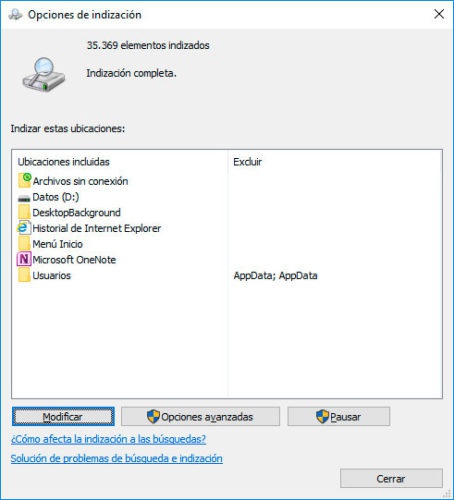
 WE012
on 24 Jul 2018
WE012
on 24 Jul 2018
The same issue with a fresh install on Windows 10 .. I found it in the C:\Users\user-name\AppData\Local\atom and moved the shortcut to the Roaming folder
 Njengah
on 24 Jul 2018
Njengah
on 24 Jul 2018
I had the same issue. Fresh install, version 1.28.2 x64 on Windows 10. Had to fetch the exe and manually create shortcuts.
 JuanGaray93
on 30 Jul 2018
JuanGaray93
on 30 Jul 2018
Same issue with fresh install on Windows 10 x64 with v1.30 Atom, with an exception. There was no C:\Users\user-name\AppData\Local\Atom\bin directory. There was a C:\Users\user-name.atom directory. I created the bin directory in C:\Users\user-name\AppData\Local\Atom\ and moved the data in the .atom directory into the bin directory. Atom was then able to start with that move. Hope this helps.
 gbmcd
on 5 Sep 2018
gbmcd
on 5 Sep 2018
The %username%.atom folder should only contain the data for the application (configuration, settings, installed packaged) - not the application itself.
Are you saying you had an atom.exe in that directory or a sub-directory within it?
damieng
on 5 Sep 2018
Well, it was solved after i installed it with RUN as administrator
and Bingo, the icon is on the desktop and start menu
 Cydrux
on 18 Sep 2018
Cydrux
on 18 Sep 2018
19 months after the problem was reported, here I am confirming that it still exists.
My suggestion is to
- Use the time-tested approach of asking the user where he/she wants the software installed
- Fix this particular problem
If it helps,
- attached is the SquirrelSetup.log found under %localappdata%\atom\
- I am on the latest version of Windows 10 (all patches and updates installed as of today morning).
- This issue occurs even if I run installer as admin
- this issue _does not_ occur on the current beta (1.32.0-beta3)
Hope this helps..
 mskadu
on 12 Oct 2018
mskadu
on 12 Oct 2018
Win10 1809: Desktop shortcut exists and works; however, there is no Start Menu shortcut.
2018-11-06 12:02:49> Program: Starting Squirrel Updater: --createShortcut atom.exe -l Desktop,StartMenu
2018-11-06 12:02:49> ApplyReleasesImpl: About to create shortcuts for atom.exe, rootAppDir C:\Users\rcpao\AppData\Local\atom
2018-11-06 12:02:50> ApplyReleasesImpl: Creating shortcut for atom.exe => C:\Users\rcpao\AppData\Roaming\Microsoft\Windows\Start Menu\Programs\GitHub, Inc.\Atom.lnk
2018-11-06 12:02:50> ApplyReleasesImpl: About to save shortcut: C:\Users\rcpao\AppData\Roaming\Microsoft\Windows\Start Menu\Programs\GitHub, Inc.\Atom.lnk (target C:\Users\rcpao\AppData\Local\atomatom.exe, workingDir C:\Users\rcpao\AppData\Local\atom\app-1.32.1, args , toastActivatorCSLID f859ea73-8d1d-59d0-89d7-06ee420a371f)
2018-11-06 12:02:50> ApplyReleasesImpl: Creating shortcut for atom.exe => C:\Users\rcpao\Desktop\Atom.lnk
2018-11-06 12:02:50> ApplyReleasesImpl: About to save shortcut: C:\Users\rcpao\Desktop\Atom.lnk (target C:\Users\rcpao\AppData\Local\atomatom.exe, workingDir C:\Users\rcpao\AppData\Local\atom\app-1.32.1, args , toastActivatorCSLID f859ea73-8d1d-59d0-89d7-06ee420a371f)
2018-11-06 12:02:50> ApplyReleasesImpl: Examining Pin: Command Prompt.lnk
2018-11-06 12:02:50> ApplyReleasesImpl: Examining Pin: File Explorer.lnk
2018-11-06 12:02:50> ApplyReleasesImpl: Examining Pin: Firefox.lnk
2018-11-06 12:02:50> ApplyReleasesImpl: Examining Pin: Google Chrome.lnk
2018-11-06 12:02:50> ApplyReleasesImpl: Examining Pin: Notepad++.lnk
2018-11-06 12:02:50> ApplyReleasesImpl: Examining Pin: VMware Workstation Pro.lnk
2018-11-06 12:02:52> Program: Starting Squirrel Updater: --download https://atom.io/api/updates-x64?version=1.32.1
2018-11-06 12:02:52> Program: Fetching update information, downloading from https://atom.io/api/updates-x64?version=1.32.1
2018-11-06 12:02:52> SingleGlobalInstance: Failed to grab lockfile, will retry: C:\Users\rcpao\AppData\Local\Temp.squirrel-lock-B765A3C0E469AA514EAA9271029185D8FE3903E4: System.IO.IOException: The process cannot access the file 'C:\Users\rcpao\AppData\Local\Temp.squirrel-lock-B765A3C0E469AA514EAA9271029185D8FE3903E4' because it is being used by another process.
at System.IO.__Error.WinIOError(Int32 errorCode, String maybeFullPath)
at System.IO.FileStream.Init(String path, FileMode mode, FileAccess access, Int32 rights, Boolean useRights, FileShare share, Int32 bufferSize, FileOptions options, SECURITY_ATTRIBUTES secAttrs, String msgPath, Boolean bFromProxy, Boolean useLongPath, Boolean checkHost)
at System.IO.FileStream..ctor(String path, FileMode mode, FileAccess access, FileShare share)
at Squirrel.SingleGlobalInstance..ctor(String key, TimeSpan timeOut)
2018-11-06 12:02:53> SingleGlobalInstance: Failed to grab lockfile, will retry: C:\Users\rcpao\AppData\Local\Temp.squirrel-lock-B765A3C0E469AA514EAA9271029185D8FE3903E4: System.IO.IOException: The process cannot access the file 'C:\Users\rcpao\AppData\Local\Temp.squirrel-lock-B765A3C0E469AA514EAA9271029185D8FE3903E4' because it is being used by another process.
at System.IO.__Error.WinIOError(Int32 errorCode, String maybeFullPath)
at System.IO.FileStream.Init(String path, FileMode mode, FileAccess access, Int32 rights, Boolean useRights, FileShare share, Int32 bufferSize, FileOptions options, SECURITY_ATTRIBUTES secAttrs, String msgPath, Boolean bFromProxy, Boolean useLongPath, Boolean checkHost)
at System.IO.FileStream..ctor(String path, FileMode mode, FileAccess access, FileShare share)
at Squirrel.SingleGlobalInstance..ctor(String key, TimeSpan timeOut)
 rcpao-enmotus
on 9 Nov 2018
rcpao-enmotus
on 9 Nov 2018
I appreciate any help here. Thank you.
PS I really want to move over from Sublime Text 👍
Go to C:\Users[username]\AppData\Local\atom
Do not forget to Pin it to start menu :D
 CrackerKSR
on 16 Nov 2018
CrackerKSR
on 16 Nov 2018
Atom is located in C:\Users[username]\AppData\Local\atom
CrackerKSR
on 16 Nov 2018
You can use the zip folder of atom. Extract the files and there you go.
 sachinkum0009
on 20 Dec 2018
sachinkum0009
on 20 Dec 2018
i experienced this as well, i was able to find the atom.exe at this path %LOCALAPPDATA%\Atom.....
Then is just pinned it to my taskbar..

 EmmanuelMushashu
on 12 Jan 2019
EmmanuelMushashu
on 12 Jan 2019
I installed atom through pip, also added path to environment variable,how can I run it now?? I checked it's installed but doesn't have .exe file or bin folder!
 skywalker201090
on 15 Jan 2019
skywalker201090
on 15 Jan 2019
@skywalker201090
I installed atom through pip
If you are referring to the Python package manager, I believe you installed this, decidedly not Atom (the text editor). The only supported install process for Atom is from official page. Other package managers like Snap may provide Atom, but they tend to be out of date and / or modified.
 Aerijo
on 17 Jan 2019
Aerijo
on 17 Jan 2019
In Some Windows pc, the AppData folder is hidden due to which content inside of it is hidden. So the Atom icon does not appear, but if we unhide it from the control panel and create a shortcut to the desktop it functions properly, I do not know how installation work but I think the problem can be resolved around it.
Once I learn it, I would resolve it myself. Thanks for creating this beautiful text editor.
 UtkarshMalviya11
on 24 Jan 2019
UtkarshMalviya11
on 24 Jan 2019
If you have just installed the Atom Editor, just load the Task Manager, right click the atom.exe and goto file location. Otherwise follow the file location : C:\Users\Username\AppData\Local\atom\app-1.34.0 (whatever version).
 iswaq
on 18 Feb 2019
iswaq
on 18 Feb 2019
It happens when the computer has multiple user accounts, it will be installed on the administrator account, and not showing in other account.
Ex. my admin pc user is C:\users\pcx_admin\
What I did was to logon the administrator account and it show in the start up, in the desktop, etc. so I just copy the shortcut link to the pc user I want.
C:\users\bdalina\Desktop ->i paste the shortcut there
Then I log to the account bdalina, hooray its there and it runs!
 bdalina54
on 28 Feb 2019
bdalina54
on 28 Feb 2019
Atom will be found in appdata in your User/(this is your username)/Appdata/atom/atom.exe
but enable hidden folders...
 Sanidhya-Tyagi
on 10 Jun 2019
Sanidhya-Tyagi
on 10 Jun 2019
Its resolved thank you.
On Mon, 10 Jun 2019, 18:41 Sanidhya-Tyagi, notifications@github.com wrote:
Atom will be found in appdata in your User/(this is your
username)/Appdata/atom/atom.exebut enable hidden folders...
—
You are receiving this because you were mentioned.
Reply to this email directly, view it on GitHub
https://github.com/atom/atom/issues/14020?email_source=notifications&email_token=AKI6UFYUHBUG2VQRIE2HZR3PZZHI5A5CNFSM4DEA72GKYY3PNVWWK3TUL52HS4DFVREXG43VMVBW63LNMVXHJKTDN5WW2ZLOORPWSZGODXJ2P4A#issuecomment-500410352,
or mute the thread
https://github.com/notifications/unsubscribe-auth/AKI6UF5CJCFQJQTNLKCYGYLPZZHI5ANCNFSM4DEA72GA
.
skywalker201090
on 10 Jun 2019
Same issue as the original post, downloaded Atom x64 from the official site today, %LOCALAPPDATA%\Atom x64 locates the exe file, but is not showing up in the windows start menu/programs.
 garynobles
on 15 Jun 2019
garynobles
on 15 Jun 2019
Okay - I found the atom.exe file here
C:\Users\my user name \AppData\Local\atomapp-1.15.0\atom.exe
and I made a shortcut so I can start it up now.
Thanks
 netwards
on 16 Jun 2019
netwards
on 16 Jun 2019
Ridicules issue that has been around for years. Never happens with other programs, just Atom. Fix it!
 EyesX
on 16 Jun 2019
EyesX
on 16 Jun 2019
Still an issue, it doesnt auto add to path or create shortcuts
 sylekta
on 16 Jun 2019
sylekta
on 16 Jun 2019
I have the same problem but all I could was this folder C:\Users[username here]\AppData\Roaming\Atom\ but there was not Atom.exe in the folder. Any ideas on where to fin d it?
 sherwoodhughes
on 7 Aug 2019
sherwoodhughes
on 7 Aug 2019
I have the same problem but all I could was this folder C:\Users[username here]\AppData\Roaming\Atom\ but there was not Atom.exe in the folder. Any ideas on where to fin d it?
Should have also said that I did a search of the hard drive and found no atom.exe file. Like others I installed this directly from the atom.io website.
sherwoodhughes
on 8 Aug 2019
hi all
* I found a Global solution *
- just go to this link
https://atom.io/packages/preview - click on install
- click on run with atom only
- atom opened
- rignt click on atom icon on the bar then attach it
voila :)
 shafiq-dev
on 13 Sep 2019
shafiq-dev
on 13 Sep 2019
I don't seem to have AppData folder in " C:\Users[username here]\AppData\Roaming\Atom\ " . I can see .atom folder, but no atom.exe inside it. What I did is I pinned the running atom program into my taskbar, but it sure is better to have a desktop shortcut. And no worries to reinstall again and again
Edit: no AppData folder in C:\Users[username here]\AppData\Roaming\Atom\ , but when I type %LOCALAPPDATA% everything appears. I'm sensing a problem here that I can't simply see my AppData folder outside. Nonetheless, I already have a shortcut in desktop and hopefully won't have to reinstall again.
 jsldeleon
on 29 Oct 2019
jsldeleon
on 29 Oct 2019
So, this is a long standing issue that has gone unfixed
 inemesitaffia
on 18 Nov 2019
inemesitaffia
on 18 Nov 2019
i install this and some packages, next day i dont have the .exe and only have the atom carpet in roaming, :S
 JosueEstrada
on 26 Nov 2019
JosueEstrada
on 26 Nov 2019
issue happened to me today
 jefieldv
on 22 Jan 2020
jefieldv
on 22 Jan 2020
This issue still exists, it seems to have started happening when I uninstalled and installed Atom again
Edit: I downloaded the installer provided in https://atom.io
 42mix
on 17 Mar 2020
42mix
on 17 Mar 2020
I have used atom on my computer for several projects (windows 10). I go to load it up again today and there is no trace of it anywhere. I have searched in prg files, appdata, start menu. It has vanished from my computer. I last used it about 2 months ago. I did not uninstall it. WTF is going on.
 admin4life
on 23 Mar 2020
admin4life
on 23 Mar 2020
Preferably this issue is solved
Sanidhya-Tyagi
on 23 Mar 2020
i am still using atom and it is still in app data
Sanidhya-Tyagi
on 23 Mar 2020
Uninstall atom completely by deleting app data /atom and try again
Sanidhya-Tyagi
on 23 Mar 2020
Please close this issue
Sanidhya-Tyagi
on 23 Mar 2020
I got the exact same issue
My workaround was to create shortcut of the atom.exe found in
C:\Users\[username]\AppData\Local\atom\app-[version]
Then, cut and paste the shortcut to the desktop
 ninjaasmoke
on 14 Apr 2020
ninjaasmoke
on 14 Apr 2020
Happen to in 2020.
 pixelbly
on 13 May 2020
pixelbly
on 13 May 2020
Okay - I found the atom.exe file here
C:\Users\my user name \AppData\Local\atomapp-1.15.0\atom.exe
and I made a shortcut so I can start it up now.
Thanks
Thanks dude
 shivaramayysola
on 19 May 2020
shivaramayysola
on 19 May 2020
Easiest way to create shortcut for atom :)
After installing atom when it opens
1) click on file ->open file
It will automatically redirect you to atom.exe
Right click on atom and then create desktop shortcut
Cheers :)
 Deepak0-01
on 1 Jun 2020
Deepak0-01
on 1 Jun 2020
Okay, i tried everything. still couldn't find it.
Here is the HACK that worked for me: (_for creating a desktop shortcut_ )
_right click>new>shortcut_
type atom (and select "atom://welcome/welcome" or you can maybe type this)
give your shortcut a name. (eg: atom)
viola!!
The new shortcut opens the welcome window, but it was better than other things.
or when you open atom for the first time, click its icon on the taskbar, and pin it to the taskbar. You can access it from there.
(I really hope this helps, please let me know)
 akanksha1901
on 1 Aug 2020
akanksha1901
on 1 Aug 2020
why can the atom devs do this?
On Sat, Aug 1, 2020 at 11:01 AM akanksha1901 notifications@github.com
wrote:
Okay, i tried everything. still couldn't find it.
Here is the HACK that worked for me: (for creating a desktop shortcut )
right click>new>shortcut
type atom (and select "atom://welcome/welcome" or you can maybe type
this)
give your shortcut a name. (eg: atom)
viola!!The new shortcut opens the welcome window, but it was better than other
things.or when you open atom for the first time, click its icon on the taskbar,
and pin it to the taskbar. You can access it from there.(I really hope this helps, please let me know)
—
You are receiving this because you commented.
Reply to this email directly, view it on GitHub
https://github.com/atom/atom/issues/14020#issuecomment-667506611, or
unsubscribe
https://github.com/notifications/unsubscribe-auth/ACHNNN737Y2K5YDJPCMBH4TR6PRXHANCNFSM4DEA72GA
.
inemesitaffia
on 4 Aug 2020
each time i have to run Atom again. any solution?
 oak-sw
on 19 Sep 2020
oak-sw
on 19 Sep 2020
Found a solution to this problem!
Step 1: Go to "C:\Users
\AppData\Roaming\Microsoft\Windows\Start Menu\Programs\Github, Inc"
Step 2: Copy the Atom shortcut in there
Step 3: Paste it in "C:\Users\AppData\Roaming\Microsoft\Windows\Start Menu\Programs" Now Atom should be appearing in the start menu.
This worked for me using the x64 version and Windows 10.
Thank you so much, the only thing is, you need to run Windows Explorer with administrator rights.
Go to "C:\Windows\explorer.exe"
Right-click on "explorer.exe"
From the context menu, select "Run as Administrator"
And from there you can follow the steps as outlined above.
 toughneedle
on 18 Oct 2020
toughneedle
on 18 Oct 2020
Am also using Windows 10 (64-bit), just installed Atom for the first time, and after closing its first run, was at a loss for how to open the app again. The installer hadn't added Atom to my Start menu and Atom isn't findable via a typed search in the Windows Search (on the taskbar). Atom was also not found in either of the standard program folders that Windows applications typically install into. If users can't locate a way to run a program they've installed (without having to Google it), that ought to be considered a serious problem and corrected immediately!
Despite the fact that 3 individuals have posted above that they have found "a solution", only workarounds have been posted - and so now, some 3.5 years after the bug was first opened, there appears to have been no progress in resolving the real issue at hand: Atom's Windows installer fails to add the program to the Windows Start Menu of the Windows user profile in use at the time of installation.
_Note: bdalina54's comment on Feb 27 2019 suggests the issue occurs when there are multiple user profiles in Windows and that Atom is getting installed to the admin profile - yet in my case, my profile is the admin profile and Atom in absent from my Start Menu, or from any profile's Start Menu on my computer._
Secondary to the main issue is that Atom's current installer is non standard and fails to do things expected of Windows installers. So to summarize the issues with the current Atom installer:
- The installer does not add Atom to the logged-in user's Start Up folder.
- The installer installs Atom to a non-standard file location; as the Atom webpage indicates that the download is for 64-bit versions of Windows, the standard(/expected) default install path should be "C:\Program Files"; it is not.
- Moreover, the installer installs Atom into what is by default (in Windows) a _hidden_ subdirectory: "C:\Users[profile]\AppData\local\"
- During installation, the installer does not provide the user with any information about the application's actual install path - which is helpful info even if it is only for future reference so the application can be manually located, if need be.
- The installer does not offer the user the option of selecting & using a custom install path; it is a non-interactive and essentially silent install. Most Windows installers have some degree of user interactivity such as prompting the user to select a 'Standard or Custom' install type and to then confirm the default install location and/or change it to a custom location.
My suggestion is that the current Windows installer be replaced by an entirely different installer, one that follows standard, expected Windows install protocol.
 theClubHopper
on 19 Nov 2020
theClubHopper
on 19 Nov 2020
Related issues
 csholmq
·
105Comments
csholmq
·
105Comments
 snario
·
91Comments
snario
·
91Comments
 alexwhitman
·
119Comments
alexwhitman
·
119Comments
 pbhogan
·
126Comments
pbhogan
·
126Comments
 PanderMusubi
·
119Comments
PanderMusubi
·
119Comments
Most helpful comment
Okay - I found the atom.exe file here
C:\Users\my user name \AppData\Local\atomapp-1.15.0\atom.exe
and I made a shortcut so I can start it up now.
Thanks